
2 min read
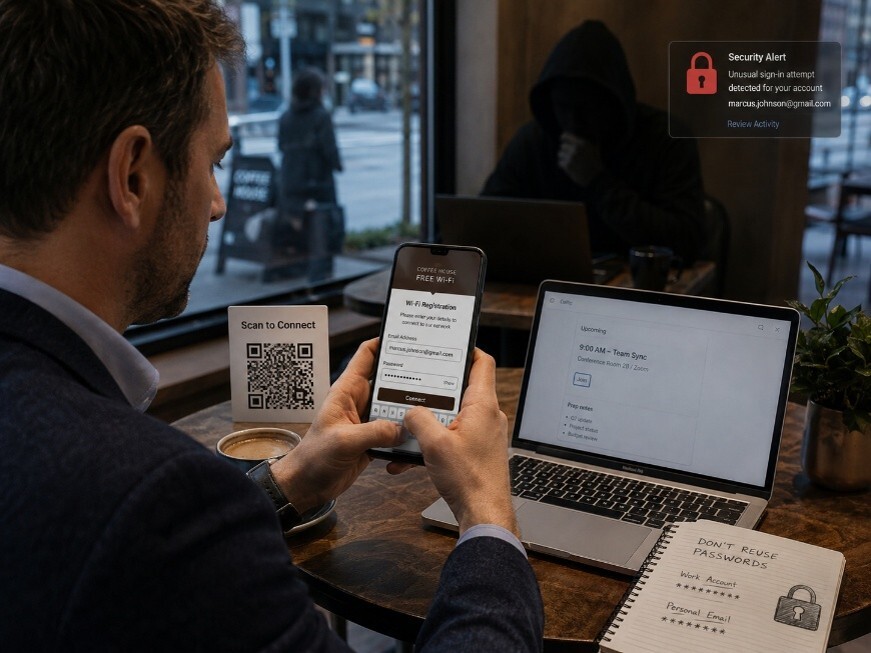
Matthew grabbed his usual table at the coffee shop near the office. He needed to connect to the Wi-Fi before his 9 a.m. call. A small card on the table said "Scan to Connect." Easy enough. He pointed his phone at the QR code, tapped the link, and entered his email address and password to "register" for access
The Wi-Fi worked. Matthew thought nothing of it.
Two days later, his personal email account was locked. Someone had logged in from another country. The password he used at that coffee shop? He also used it for work. Same email. Same password.
That QR code was not placed by the coffee shop.
What Happened
A fake QR code, placed over or near a legitimate one, sent Matthew to a phishing site that looked like a Wi-Fi login page. He entered real credentials on a fake form. The attacker collected them within seconds. This technique is called QR phishing, or "quishing." It works because people trust QR codes and rarely check where they lead.
QR codes are just links in disguise. You cannot see the destination before you scan. A malicious QR code can send you to a fake login page, start a file download, or silently enroll your device in a scam. If you enter work credentials on a fake site, an attacker can access your email, your files, and your organization's systems.
Remember the Framework

Simple Steps to Protect Yourself
-
Check the URL after scanning. Before tapping anything, look at the web address your phone shows. If it looks strange or unexpected, do not proceed.
-
Look at the QR code itself. A sticker placed over an original code is a common trick. If it looks added on, skip it.
-
Never enter a work password on a page you reached through a QR code in a public place.
-
Use your phone's mobile data instead of unknown public Wi-Fi. It is safer for work tasks.
-
If a QR code asks for login credentials, stop. Legitimate Wi-Fi registration rarely requires a work email and password.
Do This Today
Open your phone and check your saved Wi-Fi networks. Remove any public networks, such as coffee shops, airports, or hotels, that you no longer use or do not recognize.
Quick Checklist
-
I pause before scanning any QR code in a public place.
-
I check the URL my phone shows before tapping through.
-
I never enter my work password on a page reached through a QR code.
-
I use mobile data for sensitive tasks when I am away from a trusted network.
-
I report suspicious QR codes or unexpected login pages to IT.
Zero Trust Human Habit of the Week
After scanning any QR code, read the full URL before tapping. If the address looks unfamiliar or does not match the business you are at, close it.