
2 min read
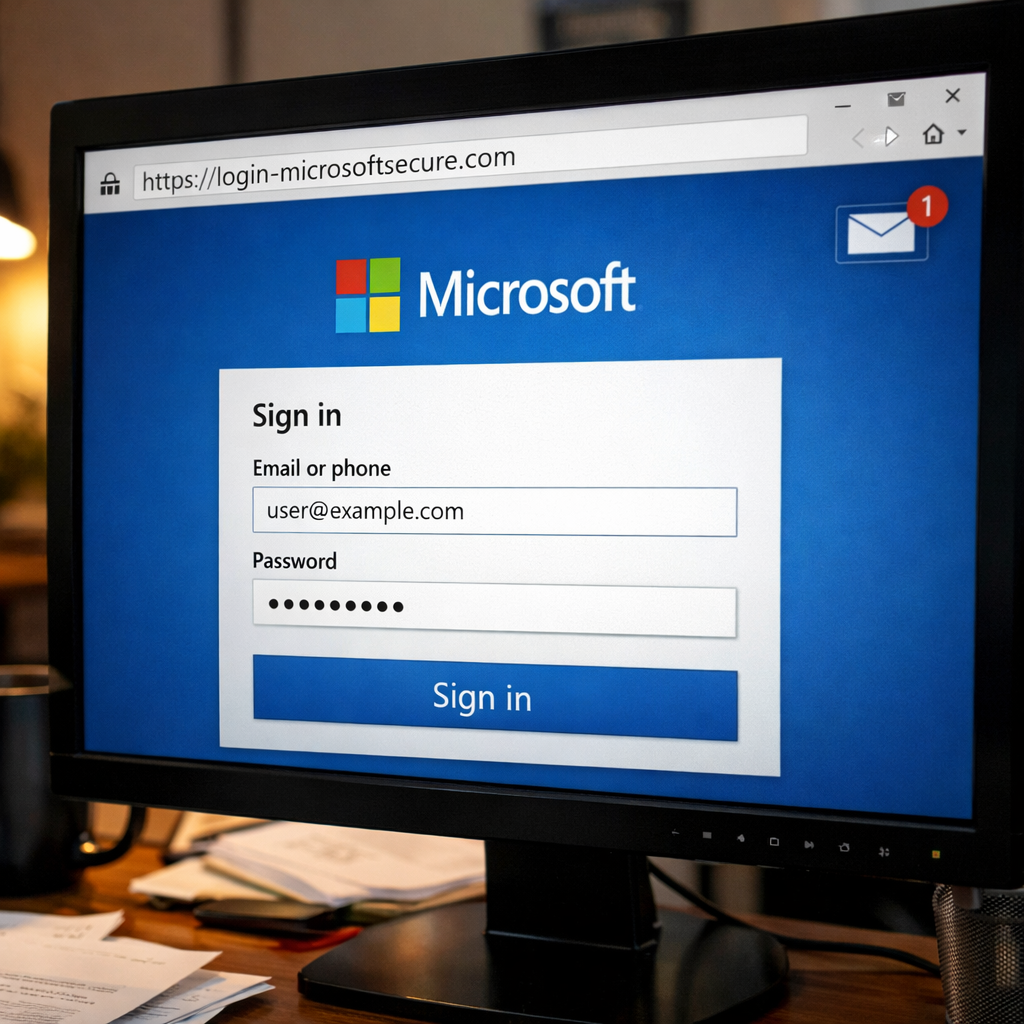
Marcus had been using Microsoft 365 for years. He knew the login page by heart. So when an email arrived Tuesday morning saying his account needed to be re-verified, he clicked the link without a second thought.
The page looked perfect. The Microsoft logo, the familiar blue background, the same input fields. He typed his email address and password, clicked Sign In and waited. Nothing happened. He refreshed his browser and the page was gone. Later that afternoon, his IT team called.
Someone had logged into his account from Eastern Europe. All of it happened in under four minutes.
What Happened
The email Marcus received was a phishing message. The link took him to a fake login page built to look identical to the real Microsoft 365 sign-in screen. When he typed his credentials, attackers captured them instantly. The fake page then disappeared to avoid detection. His real Microsoft account was never part of what he saw.
Fake login pages are one of the most common ways attackers steal work credentials. Once they have your username and password, they can access your email, files and any app connected to your account. From there, they can impersonate you, read sensitive messages, or move deeper into your organization's systems.
This risk applies equally to personal accounts like your bank, personal email or any site where you reuse the same password.
Remember our Framework

Simple Steps to Protect Yourself
-
Check the web address before you type anything. The real Microsoft login always starts with login.microsoftonline.com. If the address looks odd, close the tab.
-
Do not click login links in emails. Open your browser and go to the site directly by typing the address yourself.
-
Turn on multi-factor authentication (MFA) for your work and personal accounts. Even if attackers capture your password, MFA makes it much harder for them to get in.
-
Never approve an MFA prompt you did not trigger yourself. An unexpected prompt means someone else may be trying to use your password right now.
-
If you typed your credentials on a page you are now unsure about, contact IT immediately. Speed matters.
Do This Today
✔ Open your browser and go to Microsoft 365 by typing the address directly. Do not use a link from any email.
✔ Confirm that MFA is active on your work account. If you are not sure, ask IT.
✔ Do the same for your personal email and bank accounts.
Quick Checklist
-
I check the web address before entering my password on any login page.
-
I do not click login links inside emails. I go directly to the site.
-
MFA is turned on for my work account.
-
MFA is turned on for my personal email and bank accounts.
-
I know to contact IT immediately if I suspect I entered my credentials on a fake page.
Zero Trust Human Habit of the Week
Before you type your password anywhere, take two seconds to read the web address at the top of your browser. If it looks wrong, close the tab and start fresh.