
2 min read
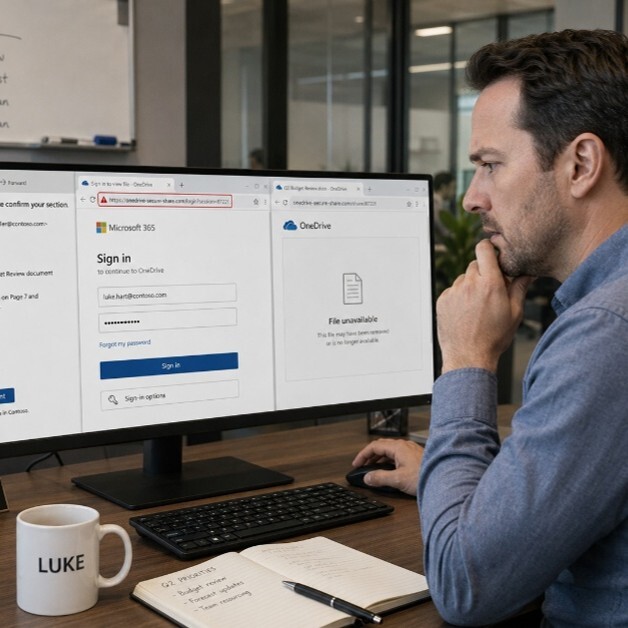
Luke had been juggling three deadlines when the notification popped up. A shared OneDrive file from what looked like his colleague Dana's email. The subject line said "Q2 Budget Review. Please confirm your section." Dana had mentioned something about budget documents earlier that week, so this felt right.
Luke clicked the link. A page loaded that looked exactly like a Microsoft 365 login screen. It asked him to sign in to view the file. He typed his username and password without a second thought.
There was no file. There was no budget review. Dana never sent anything. By the time Luke realized something felt off, someone else already had his credentials.
What Happened
Attackers send fake file-sharing notifications that look like they come from OneDrive, SharePoint, or Google Drive. The link leads to a fake login page designed to steal your username and password. The email may use a real coworker's name, a familiar subject line or even a real-looking file name to make the request feel legitimate.
Your work login is the key to your email, files, calendar, and every app connected to your account. One stolen password can give an attacker access to everything. They can impersonate you, read sensitive files, send emails as you or move deeper into your organization's systems. This type of attack is common and works because it looks so ordinary.
Remember the Framework

Simple Steps to Protect Yourself
-
If a file-sharing notification asks you to log in, stop. Real shared files in Microsoft 365 do not require you to re-enter your password if you are already signed in.
-
Check the sender's full email address, not just the display name. A name can be faked. The actual email address usually cannot.
-
Before clicking, contact the sender directly. Use a separate channel like a phone call or Teams message. Do not reply to the suspicious email itself.
-
At home, apply the same habit to Google Drive, Dropbox, and any other cloud storage notifications. If a link sends you to a login page unexpectedly, do not enter your credentials.
-
If you entered your password on a page that felt wrong, report it to IT immediately. Fast action limits the damage.
Do This Today
✔ Open your inbox and find one recent file-sharing notification. Check the sender's full email address. If anything looks unfamiliar or slightly off, do not click. Report it to IT.
Quick Checklist
-
Did the email come from a full, recognizable email address?
-
Did the link take me to a login page I was not expecting?
-
Did I verify with the sender through a separate channel before clicking?
-
Do I know how to report a suspicious email to IT?
-
Did I take action quickly if I think I already clicked something wrong?
Zero Trust Human Habit of the Week
If a shared file asks you to log in, verify before you type. Call or message the sender directly. One quick check can stop an attack before it starts.